Export to PDF
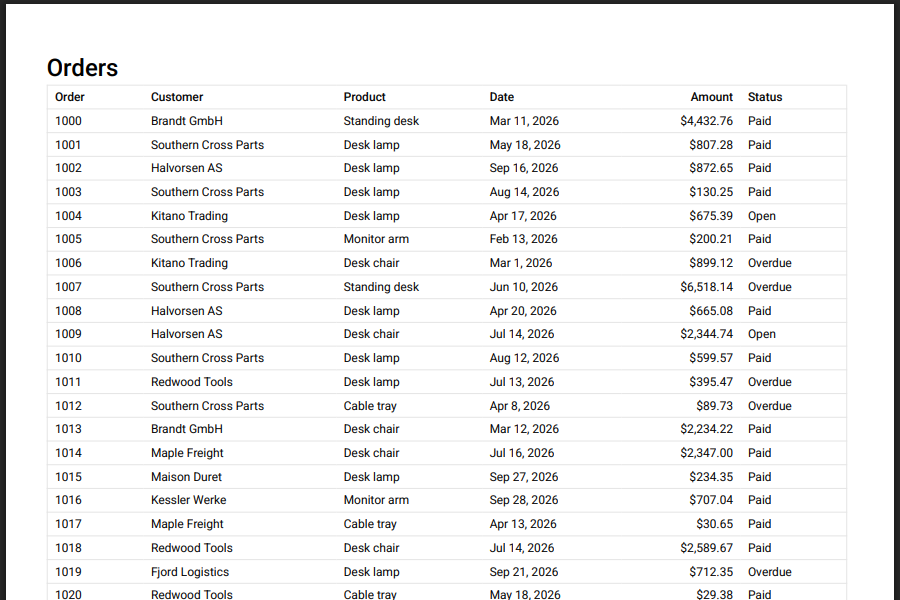
exportPdf lays the table out on pages: the header row repeats on every page, rows are separated by light lines, and the footer shows the date and "Page X of Y". The PDF looks like a shadcn/ui table: no header fill, no stripes, group rows in the muted gray. See colors to match your own theme.
import { exportPdf } from "rowpine"

await exportPdf(table, { fileName: "orders", title: "Orders" })
Wide tables fit the page: with more than 8 columns the page turns landscape, the text shrinks down to three quarters of its size if needed, and past that the columns split over several pages with the first column repeated. fit and repeatColumns change this; see page setup.
Cell text comes from each column's meta.rowpine.format, else numbers and dates in the browser's locale. See number and date formats.
Languages#
The default font, Roboto, has no Chinese, Japanese, Korean, Arabic, Hebrew, Thai or Indic letters. For those, pass a font that covers them and Latin:
await exportPdf(table, {
  font: { name: "Noto", normal: notoRegularBase64, bold: notoBoldBase64 },
})
Each file is the font's base64 data or a URL.
Colors#
ExportMenu reads your shadcn/ui theme from the page (--foreground, --muted and --border) and gives the PDF and Excel files the same colors as the table. Pass theme="none" to keep rowpine's defaults.
From your own buttons, read the theme with exportThemeFromPage and spread it into the options:
import { exportPdf, exportThemeFromPage, exportXlsx } from "rowpine"

const theme = exportThemeFromPage()
await exportPdf(table, { ...theme.pdf, title: "Orders" })
await exportXlsx(table, { ...theme.xlsx, fileName: "orders" })
A dark theme is not copied: files print on white, so the light defaults read better. Any color option you pass, such as headerColor, wins over the theme. See PDF page setup for the full list.